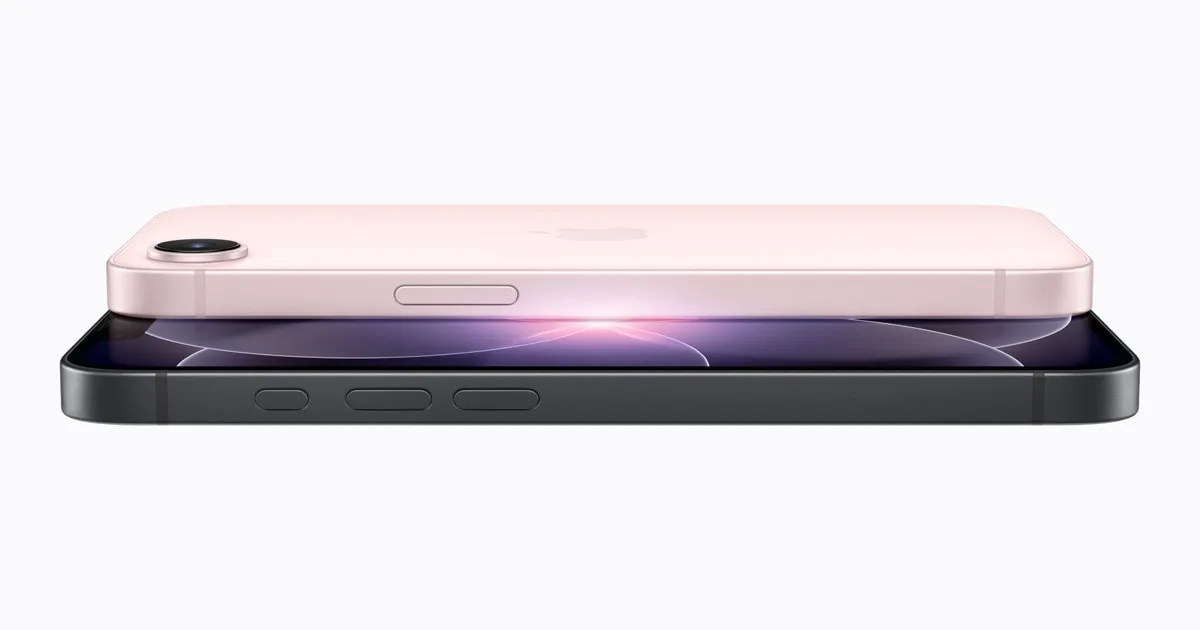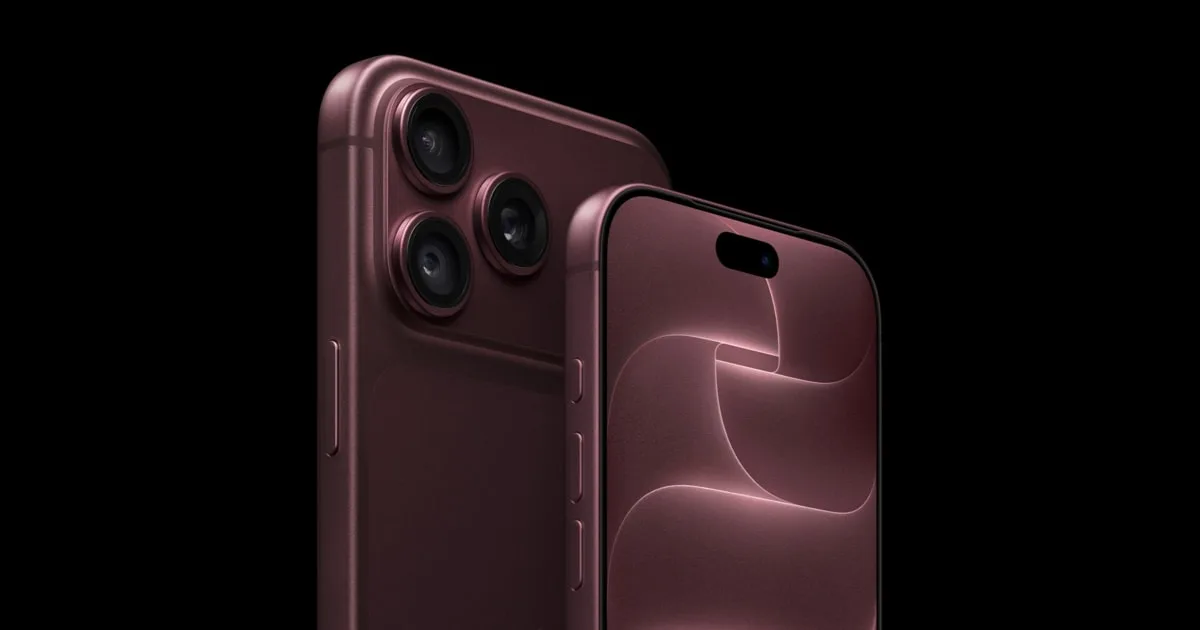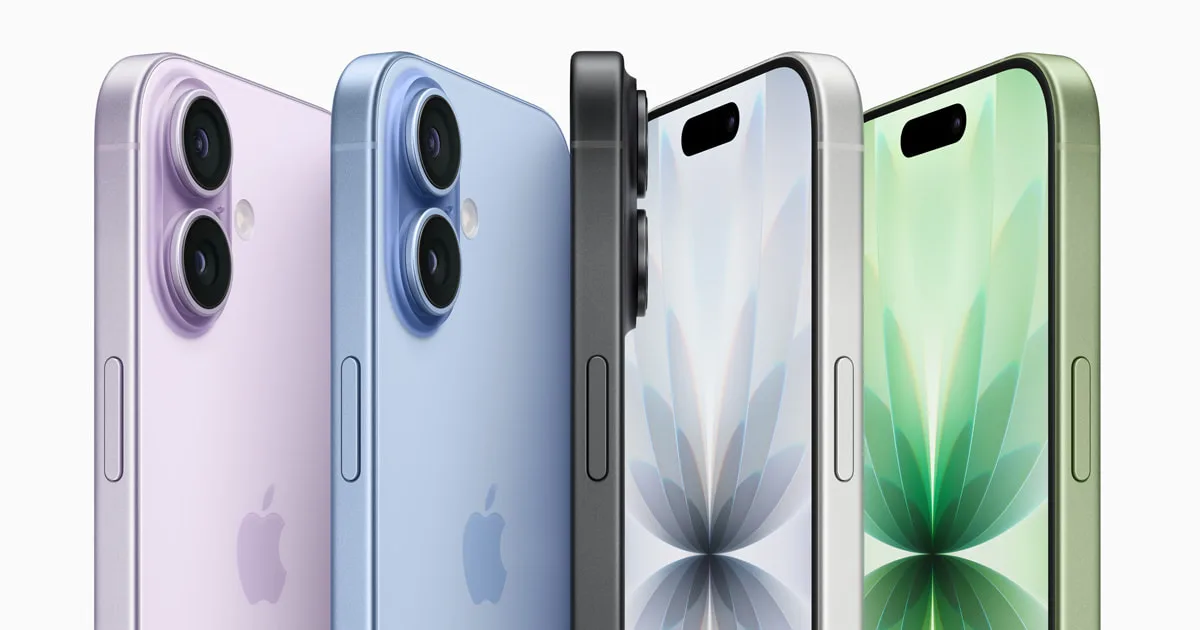
A new iPhone is a big holiday purchase, and nobody wants to lose photos, messages or two-factor codes in the move. Apple offers four main routes, and all of them happen during the setup screens on the new phone. Below we explain which to pick and walk through each one, based on Apple's own support pages. The steps are the same whether you're moving to an iPhone 17e, an iPhone 17 or an iPhone 18 Pro.
Which method should you use?
| Method | Best for | What you need |
|---|---|---|
| Quick Start, direct transfer | Most people with an old iPhone in hand | Both iPhones, Wi-Fi, Bluetooth, time |
| Quick Start, from iCloud | Using the new phone straight away | A recent iCloud backup |
| Restore from a computer backup | Big libraries, slow internet, no spare iCloud space | A Mac or Windows PC and a cable |
| From Android | Switching from an Android phone | The Android phone, Wi-Fi, ideally a USB-C cable |
Before you start: five checks
- Update the old phone. Apple's Quick Start guide asks for iOS 11 or later at minimum, and recommends updating both devices to the latest version. Go to Settings > General > Software Update.
- Make a fresh backup. Even if you plan to transfer directly, a backup is your safety net.
- Charge both phones, or better, keep them plugged in during the move.
- Know your Apple Account password. You'll be asked for it, sometimes more than once.
- Set aside time. Apple doesn't give a fixed duration. It depends on how much data you have and how fast your network is, so an evening is safer than your lunch break.
Method 1: Quick Start from your old iPhone
This is the route most people should use. These steps follow Apple's Quick Start guide:
- Make sure the old iPhone is on Wi-Fi with Bluetooth turned on, then unlock it.
- Turn on the new iPhone and place it next to the old one. A prompt appears on the old phone offering to set up the new one. If it vanishes, restart both phones.
- Follow the steps: connect the new phone to Wi-Fi or cellular, activate your mobile service if asked, and set up Face ID.
- Choose how to move your data. Download from iCloud lets you start using the new phone while apps and data arrive in the background. Transfer from iPhone moves everything directly, but you can't use either phone until it finishes.
- Keep the phones close together and plugged in until the transfer is complete.
Your phone number moves during the "activate cellular service" step if your carrier supports it. If it doesn't, your carrier's app or website can finish the job. Note that Quick Start can't move data onto a phone enrolled in Apple Business or Apple School Manager, which affects some work phones.
Method 2: Restore from an iCloud backup
Use this if your old phone is lost, broken or already traded in, or if you'd rather make the backup first and set up later.
Make the backup. According to Apple's iCloud backup guide, join Wi-Fi, then open Settings, tap your name, tap iCloud, then iCloud Backup, and tap Back Up Now. Stay on Wi-Fi until it finishes. The date and time of the last backup appear under the button, so check it's from today.
Short of iCloud space? Apple offers free temporary iCloud storage when you buy a new iPhone. On the old phone, go to Settings > General > Transfer or Reset iPhone, and tap Get Started under Prepare for New iPhone. Apple's temporary storage page says you then have 21 days to restore the backup, with an option to extend if your phone hasn't arrived.
Restore it. Following Apple's restore guide, switch on the new iPhone, go through setup until you reach Transfer Your Apps & Data, and choose From iCloud Backup. Sign in, pick the newest backup by date and size, and stay on Wi-Fi with the phone plugged in until the progress bar finishes. Photos, music and apps can keep downloading for a while afterwards.
Method 3: Restore from a Mac or PC
A computer backup doesn't use iCloud space and can be quicker for large libraries. It's also a good choice if your internet is slow.
- Back up the old phone. Connect it with a cable. On a Mac running macOS Catalina or later, open Finder and select the iPhone in the sidebar. On a Windows PC, use the Apple Devices app. Trust the computer when asked.
- Tick Encrypt local backup and set a password you'll remember. Apple's Mac backup guide says this is needed to keep Health and Activity data. Then click Back Up Now.
- Restore to the new phone. Connect the new iPhone, select it, click Restore Backup, and choose the latest backup. Enter the encryption password, then leave the phone connected until it restarts and finishes syncing.
Method 4: Moving from Android
Apple's Android switching guide describes two ways in. Both start on the new iPhone's Transfer Your Apps & Data screen, where you tap From Android.
Without an app. If the iPhone is on iOS 26.5 or later and the Android phone runs a compatible version of Android 17 or later, choose Transfer without App. Put the phones together and scan the QR code on the iPhone with the Android camera. Pick what to move. You can also move an eSIM this way by selecting your number on the Android phone.
With the Move to iOS app. On older Android phones, choose Transfer with App, then install Move to iOS from Google Play on the Android phone. Enter the six- or ten-digit code shown on the iPhone, join the temporary Wi-Fi network the iPhone creates, choose your content and wait for the bar to finish.
Apple lists contacts, messages, photos and videos, calendars, call history, mail accounts, web bookmarks and WhatsApp chats among the things that can move. Free apps available on both stores may transfer. Music, books and PDFs need moving by hand, and other apps need downloading again from the App Store. Apple also advises leaving both phones alone during the transfer. On the Android phone, turn off mobile data and any setting that switches Wi-Fi networks automatically.
After the move: what to check
- Two-factor apps and banking apps. Some don't carry their sign-in over. Open each one before you wipe the old phone.
- Messages and photos. Scroll back to make sure older chats and albums arrived.
- Apple Watch. If you have one, follow the prompts on the new phone to pair it.
- Then, and only then, erase the old phone with Settings > General > Transfer or Reset iPhone.
Planning to trade the old phone in? Our trade-in value guide explains how to get the most for it, and our trade-in page lists current values.
Bottom line
For an iPhone-to-iPhone move, Quick Start is the simplest choice. Pick the iCloud option if you want the new phone right away, or a direct transfer if you can wait. Use a computer backup if iCloud is full or your internet is slow, and the From Android option if you're switching. Whatever you choose, back up first and keep the old phone untouched until the new one is complete. Still choosing a phone? Our buy-now guide and gift guide can help.
Part of our iPhone buying hub: every iPhone guide in one place.
Found something out of date? Tell us and we'll fix it and log the change on our corrections page.